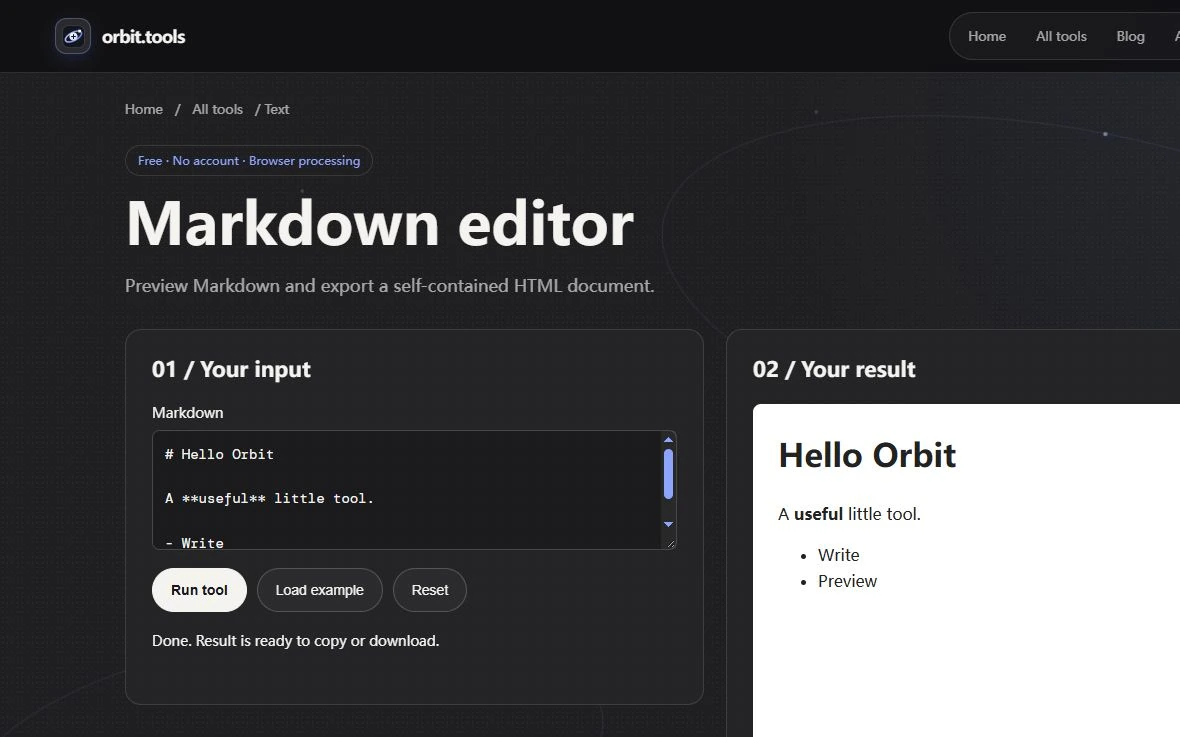
Preview is a transformation, not the source file
Markdown Editor takes text, parses it with Marked and sanitizes the resulting HTML before placing it in an isolated preview. Its Copy result action copies sanitized HTML, while Download result creates a standalone HTML document. Neither action is a substitute for saving the Markdown you typed. Keep the editable source in a text file if you will revise the note later or move it to another renderer.
Try a small handover note containing a heading, two list items and a fenced code example. Run it and verify that the code remains visible text rather than an active command. The example is a formatting check; the editor does not execute or verify the command. A useful note can therefore contain a deliberately nonfunctional demonstration, provided the surrounding prose clearly says which values are placeholders.
Missing images can be an intentional boundary
This preview deliberately removes images, embedded frames, forms, active media and styling instructions that it does not allow. A Markdown image reference is not fetched and displayed merely because its syntax is valid. If a document depends on screenshots, review it in the final publishing system and manage those images separately. Do not keep changing Markdown punctuation to repair content that this local export intentionally excludes.
The HTML preview uses a sandbox and a restrictive content policy. Sanitization and isolation reduce exposure to active content, but they are not a guarantee that every future document or dependency is harmless. Check links before following them, and do not treat a rendered link label as proof of the destination's identity. Document structure and destination trust remain separate review tasks.
A portable handover has two artifacts
For a small project note, retain both notes.md and its inspected HTML export. Open the export in the browser you expect the recipient to use and check headings, lists, code and line wrapping. If you move the Markdown to a different application, repeat that preview there. Parser settings and sanitization rules can differ even when the source text is unchanged.
When sharing instructions, copy a code example from the exported document back into a disposable text editor and compare punctuation and whitespace with the source. This catches mistakes introduced by the surrounding writing process without pretending that a successful copy proves the command is correct. The editor is most useful as a way to inspect a structured note, with an explicit boundary between editable text, generated HTML and the environment in which someone will read it.
Write the structure before the decoration
Markdown is a plain-text way to mark common document structure. A heading marker, list marker, or link syntax adds enough information for a renderer to produce formatted output while leaving the source readable. This makes Markdown useful for notes, documentation, and drafts that need to travel between tools. The exact features available depend on the renderer, so it is helpful to know which application will display the document.
Start with an outline before writing paragraphs. Use a top-level heading for the document title, then use nested headings for sections in a sensible order. Do not select a heading level only because its visual size looks right. A consistent outline helps readers scan a long document and helps another person understand its organization in the source.
Use simple syntax for everyday writing
A blank line separates paragraphs in common Markdown implementations. A hyphen or asterisk can start an unordered list, while a number followed by a period can start an ordered list. Square brackets and parentheses create a link. A fenced block can preserve code or other text where spacing matters. These small conventions are usually enough for a practical note without adding complicated formatting.
Make link text describe the destination or action. A phrase such as read the JSON specification is more informative than a list of bare URLs or repeated words like click here. Keep lists parallel: start each item with a similar kind of phrase and keep each one focused on one idea. Use code formatting for literal commands or values only when the target renderer supports it and when that distinction helps the reader.
Know which Markdown dialect you are writing
Markdown is a family of related syntaxes, not a promise that every application renders every feature identically. The CommonMark project documents a specific, tested specification because implementations historically differed in details such as lists, line breaks, and code blocks. GitHub Flavored Markdown adds its own extensions. A document that uses tables, task lists, footnotes, or raw HTML may not look the same in another editor.
If a note must work in several destinations, stick to the subset each one shares and preview it in the real destination. If you need a table or a special extension, check the target application's documentation first. Avoid relying on whitespace tricks that look aligned in a plain-text editor but collapse in rendered output. A preview catches these differences before someone else reads the published version.
Keep code and examples safe to copy
Use fenced code blocks for code examples, and include a language label if the destination supports syntax highlighting. The language label helps a reader and may help the renderer choose a highlighting mode, but it does not run or validate the code. Make sure the example is complete enough to understand and remove passwords, access tokens, internal URLs, or customer data before sharing it.
Use a short explanation before a code block to say what the reader should notice. After the block, state what result to expect or what should be changed for a different environment. If the example is only a sketch, say so. This keeps a document from turning into a pasteable fragment that appears authoritative but omits prerequisites or safety checks.