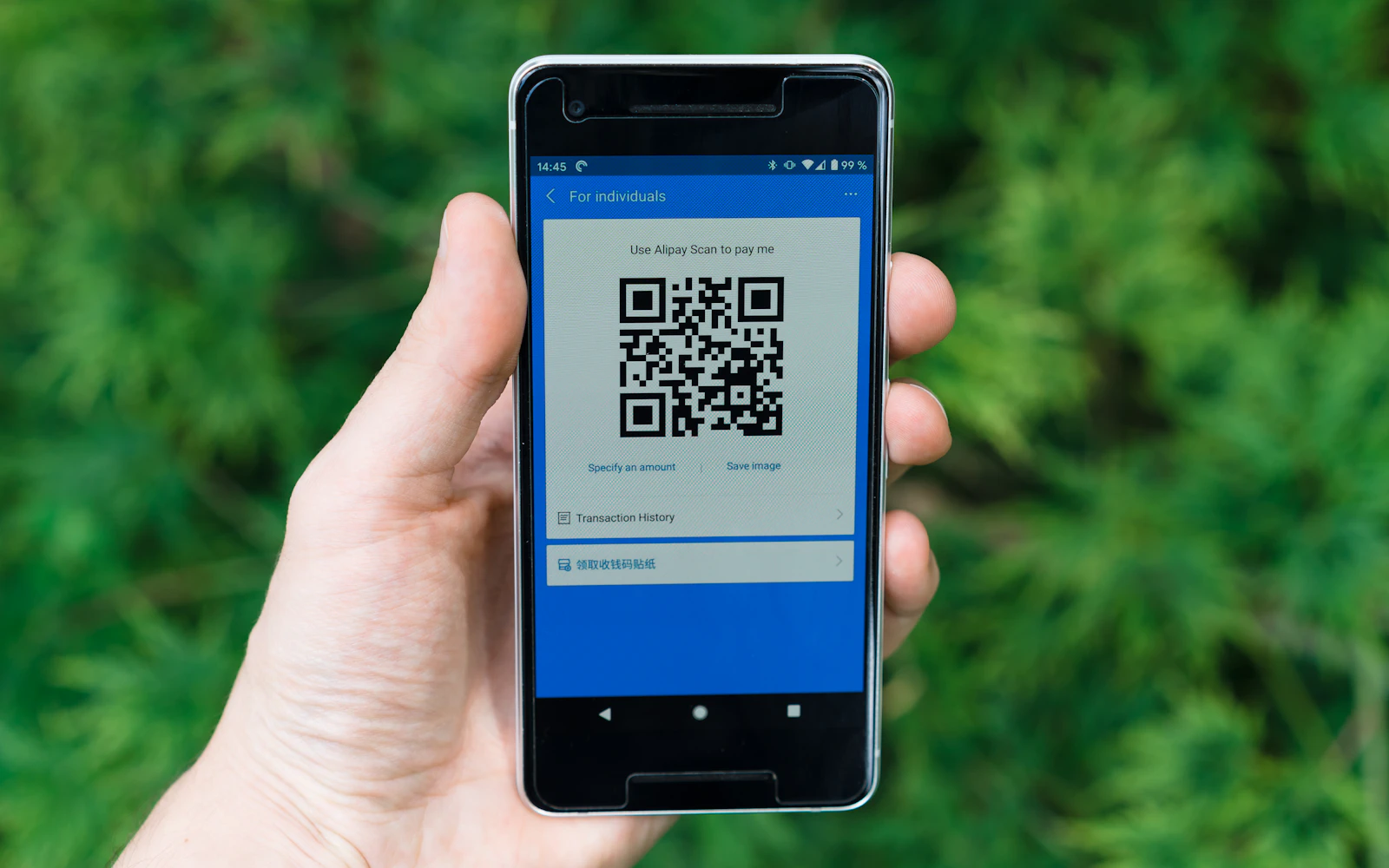
Follow the bytes from input to scan
The QR Generator encodes the text you supply into a PNG. It does not open the address to confirm that the page exists, inspect it for fraud or create an editable short link. Enter https://example.com for a harmless demonstration, choose M error correction and run the tool. The expected result is a code containing exactly that address. A scanner's link preview is a separate application interpreting those encoded bytes, not a certification supplied by the generator.
If you enter a sentence instead, expect a text payload. If you leave off a URL scheme, do not assume every scanner will repair it the same way. Copy the intended address from a trusted source, review the domain and use a complete HTTPS address when the destination supports it. The service at that destination can change later even though the printed code's bytes stay fixed. Static encoding and stable destination content are different promises.
Choose correction after choosing content length
The tool exports a 512 pixel PNG with a four-module margin. That pixel dimension is an export setting, not a universal minimum physical print size. Longer input may require a denser grid. Higher error correction consumes more of the symbol's capacity, so a payload that fits at one level can fail at another. Keep the white margin intact when placing the image in a layout; cropping it to make the black squares appear larger removes useful separation from surrounding artwork.
There is a 1,500 UTF-8 byte input guard, but it is not a promise that every input under that limit fits at every correction level. Multibyte characters and the encoder's mode choices affect capacity. If a long note fails, shorten the actual content or use an appropriate destination page rather than repeatedly increasing correction. The browser shows an error when the requested symbol cannot be produced; an older code on screen should not be treated as the new output.
Choose the destination before generating
A QR code is most useful when its destination is already clear. Decide whether it should open a website or provide another piece of text. Use the final URL or data rather than a temporary draft. Orbit does not manage editable redirects, generate contact forms or verify a service-specific payload. If the destination may change, plan a stable address that you control before committing the code to a physical sign.
Keep the destination understandable. A short, recognizable domain is easier to inspect than a long string of unrelated characters. Avoid putting private information into a code intended for a public poster or screen. QR codes can be copied and shared like any other visible link, so consider who will be able to photograph or scan the printed item.
Make the code fit its physical use
The final code must be readable where it will appear. Print a test at the planned size and scan it with more than one phone or camera app if the item will reach a broad audience. Check ordinary lighting, viewing distance, paper texture, glare, and the angle from which people are likely to approach it. A code that scans on a large monitor may be too small on a handout.
Keep enough contrast between the pattern and its background and avoid placing busy artwork across the code. Orbit exports a plain black-and-white symbol without a logo overlay or decorative frame. If you add decoration later in another application, test that modified file separately. Do not crop off the margin or add a border after export without rescanning. A plain, high-contrast code is easier to test and often clearer to use.
Test the exact printed or published version
Scan the code from the final PDF, label, screen, or print, not only from the generator preview. Confirm that it opens the intended page and that the page works on a phone. Check the first screen for a clear next action, readable text, and working links. If the code points to a form or download, try the whole path to completion before distribution.
If a URL changes, replace the code on every physical copy or maintain a redirect that is managed by the organization. Do not leave an expired link behind and assume that a new QR code will repair an old poster. Keep a small record of the destination, generation date, and locations where the code was printed. This makes it easier to find and replace outdated material.
Help people verify a scan
A QR code hides its destination until a camera or scanner reads it. The U.S. Federal Trade Commission warns that scammers can hide harmful links in QR codes and advises people to inspect an unexpected URL before opening it. Encourage people to look at the domain and be cautious if it contains misspellings, unfamiliar wording, or a request they did not expect.
For a public sign, print the destination domain beside the code so a person has another way to reach the information. Tell people what the code is for before asking them to scan it. If it opens a payment, account, or login page, use the normal security checks for that service and do not ask people to enter credentials into a page solely because a code led there.