A small fixture that exposes a large mistake
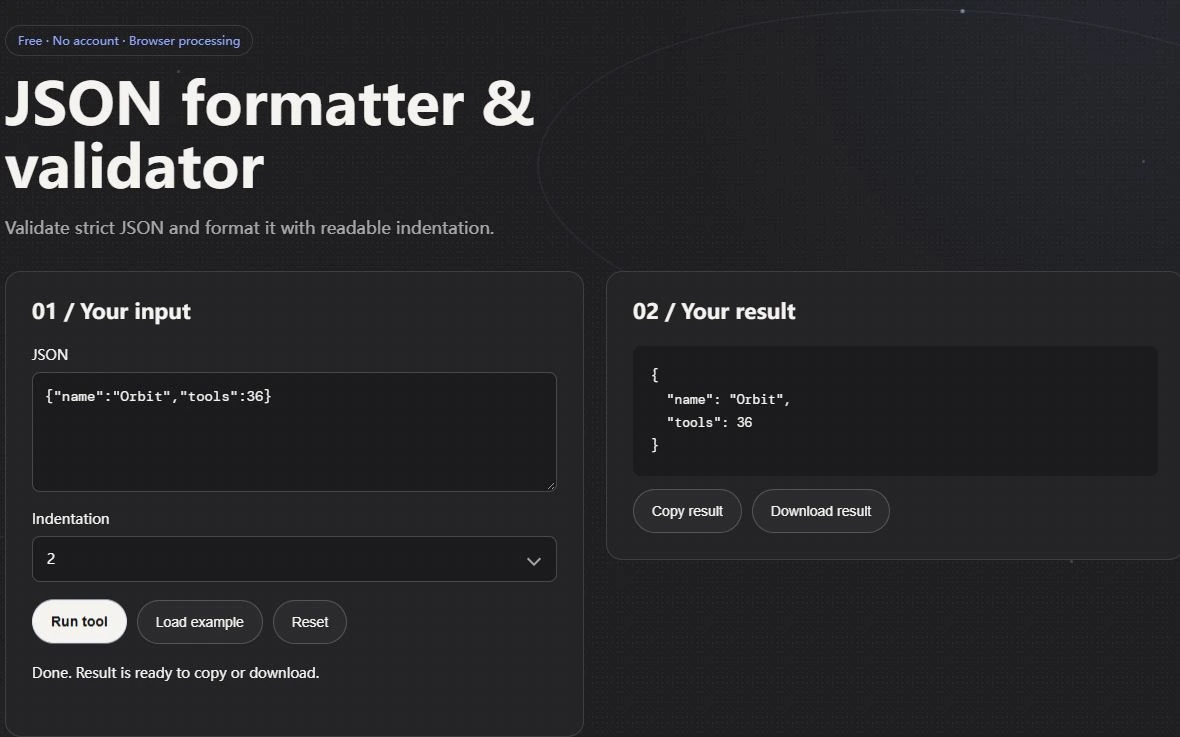
Paste {"invoiceId":9007199254740993, "reading":1e400, "label":"demo"} into JSON Formatter. Run it with an indentation choice, then compare the numeric text with the input. The identifier must still read 9007199254740993 and the reading must still read 1e400. These are diagnostic inputs, not a recommended financial data model. A formatter that parses into ordinary JavaScript values and then serializes them can round the identifier or turn an out-of-range numeric result into null.
This formatter checks syntax and then changes whitespace around the original tokens. It preserves the spelling and order of numbers, property names and string escapes. That is an important distinction: retaining the text 1e400 does not make a downstream application capable of calculating with it. RFC 8259 explicitly discusses numeric interoperability limits. When an identifier requires exact digit preservation, agree on a string representation with the consuming application rather than hoping every parser makes the same choice.
Duplicate keys deserve a visible decision
Try {"status":"draft","status":"final"}. Orbit retains both members instead of silently presenting only the last one. This is a preservation behavior, not an endorsement of duplicate keys. Different consumers can interpret duplicates differently, so resolve the ambiguity at the source. If those two values represent a history, an array with explicit timestamps or states expresses that purpose more clearly than two identically named properties.
Do not infer that visually adjacent fields have been merged, sorted or checked against a schema. The tool does none of those operations. A result can be valid JSON and still contain a misspelled field, a value in the wrong unit or a string where the application requires a number. Keep a short expected-output fixture beside the formatter output when documenting a bug. That records the intended meaning instead of merely demonstrating that a page can display indentation.
Make one intentional failure before trusting the workflow
Remove the comma between invoiceId and reading and run the formatter again. The input should fail; it should not produce a fresh downloadable success result for the damaged document. Restore the comma before changing indentation. This paired positive and negative test is useful when sharing a reproduction because it proves which part of the example is supposed to be valid.
For a support ticket, replace real account values with synthetic values that retain the same type and length characteristics. The example above can demonstrate a precision problem without containing an actual invoice. The local formatter does not submit its input for server validation, but clipboard history, browser extensions and a shared screen remain separate considerations. Save your original document separately and check the consumer's behavior before replacing production data with any formatted copy.
Separate syntax from meaning
JSON is a text format for representing structured data. Its syntax defines values such as objects, arrays, strings, numbers, booleans, and null. A formatter can make the text easier to scan, but a successful parse proves only that the input follows JSON syntax. It does not prove that the data has the fields, types, or business meaning an application expects. Treat syntax checking and schema or business validation as two separate steps.
Start with the first reported error and inspect a small area around it. Parsers often point to the place where they could no longer continue, which may be after the actual mistake. Look at the previous comma, quote, bracket, or value. Formatting the text with a JSON formatter can reveal nesting, but avoid changing several lines at once while diagnosing. A small edit followed by another parse keeps the cause and effect understandable.
Check the rules that differ from JavaScript objects
JSON looks familiar to JavaScript developers, but it is not the same as a JavaScript object literal. Object property names and string values use double quotation marks. Comments are not part of standard JSON syntax, and a trailing comma after the last array item or object property is invalid. Values such as undefined, functions, and symbols are not JSON values. If you copied data from source code, remove JavaScript-only syntax before trying to parse it as JSON.
Check paired punctuation systematically. Every opening brace or bracket must be closed at the correct nesting level. Every string must end with a matching quote, and literal quotation marks inside a string need escaping. Backslashes are also special: a path such as C:\new can accidentally contain an escape sequence if it is represented incorrectly. When data comes from a program, use a JSON serializer rather than assembling the document by concatenating strings.
Validate against the consumer's expectations
Once JSON parses, compare its shape to the interface that consumes it. A schema can define required fields, allowed values, and nested structures. If no schema exists, inspect the code or API documentation that reads the document. Check required keys, optional keys, null handling, empty lists, and number units. For dates, agree on a representation and timezone rather than assuming that a string will be interpreted the same way by every system.
Finally, save the cleaned file and test it through the same code path that will read it in production. A formatter is an aid for visibility; the parser is a syntax check; the application or schema validates the intended meaning. Keeping those checks distinct makes errors easier to locate and prevents a green checkmark from being mistaken for proof that the data is safe, complete, or correct.