A crop changes the frame
A square avatar and a wide banner can begin with the same photograph, but they need different compositions. Cropping chooses which part of the source remains. Resizing changes the pixel dimensions of that chosen content. Mixing those decisions is how a face becomes stretched or an important label disappears. Start by identifying the subject that must remain visible, then decide the destination aspect ratio before entering dimensions.
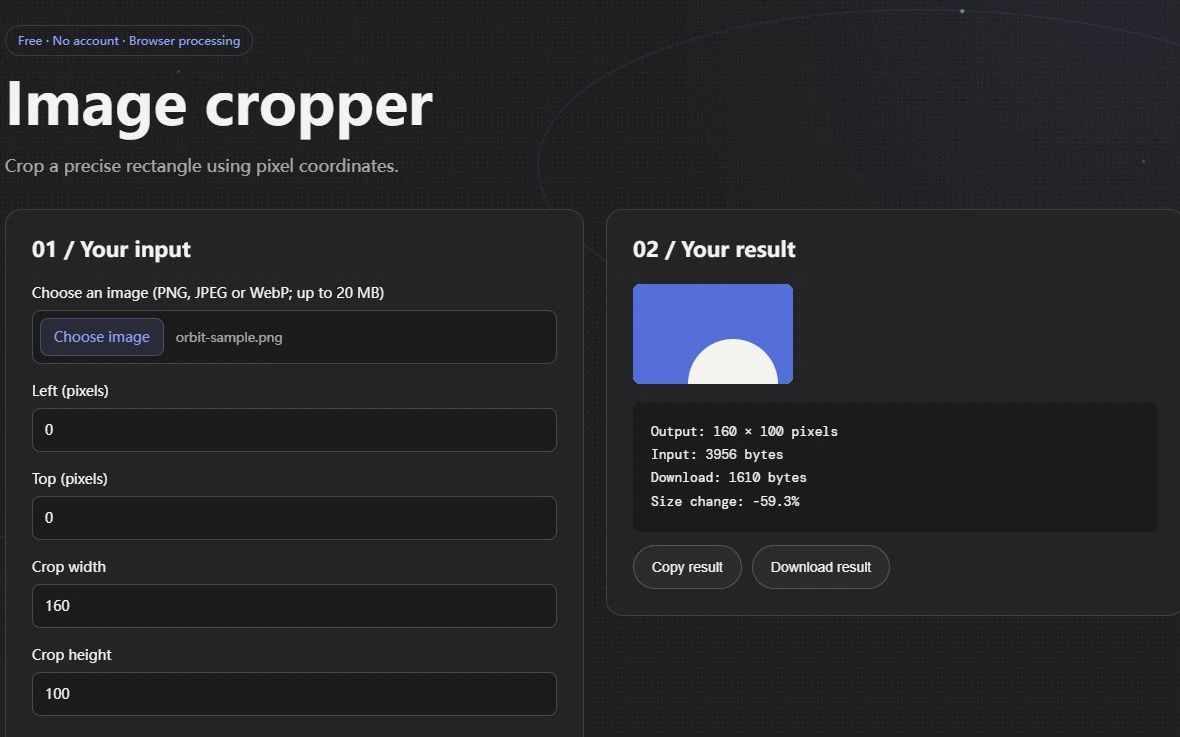
Image Cropper accepts a rectangle described by x, y, width and height in source pixels. The coordinates refer to the upper-left corner of the source, not the location of the image on your screen. An image displayed at half size still uses its full source dimensions for this operation. Keep an untouched original so that a later composition can start from the full frame rather than from an already cropped derivative.
Build a rectangle you can check by hand
Use a 320 by 200 source. Set x to 60, y to 0, width to 200 and height to 200. The right edge is 260, which is within the source width, and the bottom edge is 200, exactly the source height. The result is a square taken from the middle portion of the image. It does not invent extra background or remove the background behind the subject.
Change x to 150 while keeping width at 200. The right edge would be 350, outside the 320 pixel source. The tool should reject this rectangle rather than silently shifting it. A rejection is useful feedback about coordinates. Reduce the width or move the rectangle back inside the source; do not compensate by changing the destination size in another tool. The source boundary and the final display boundary are separate constraints.
Use width as the controlling dimension
For a 320 by 200 source, Image Resizer in Keep aspect ratio mode uses the width to calculate the height. A requested width of 640 produces a height of 400. The height field does not supply an independent constraint in that mode. If you enter 640 by 640 and keep aspect ratio, you have not asked the tool to make a square crop; you have supplied a width from which it derives a proportional height.
Exact dimensions mode uses both requested dimensions. Setting 640 by 640 stretches the rectangular source into a square. This can be appropriate for an intentionally distorted texture, but is usually wrong for people, product shapes and diagrams with meaningful geometry. To make an undistorted square avatar, crop the source to a square first, then resize that square. The sequence expresses the composition decision explicitly and makes the output easier to explain.
Enlarging is not recovering detail
Doubling width and height makes four times as many output pixels. Those extra samples do not recover detail absent from the source. A tiny label may remain unreadable after enlargement, and a softened edge may become more visible. Judge the result in the destination rather than interpreting a larger dimension as improved quality. If the original photograph is available at higher resolution, return to it instead of repeatedly enlarging a small derivative.
For a banner, check where the destination will position text and whether its layout crops again. A carefully framed local output can still lose its subject when a website applies a different aspect ratio. Keep a note of the approved rectangle and the output dimensions. That record is more useful than a filename saying final because another person can reproduce the same framing from the unchanged original.
Transparency and format remain separate
The crop and resize tools output a raster derivative. They do not perform subject extraction, repair missing corners or retain editable layers. If a source already contains transparency, inspect its exported edges against contrasting backgrounds. If the next step converts it to JPEG, the local conversion workflow places it over white. That later format choice can change transparency even when the crop itself was correct.
Inputs are limited to supported PNG, JPEG and WebP files with bounded size and pixel count. The limits protect a browser workflow from unbounded memory use; they do not describe the maximum image size every desktop editor can handle. When a large source is refused, create an appropriate working copy using software suited to that source. Renaming the file changes neither its decoded dimensions nor its memory requirements.
Approve the framing and the dimensions independently
Before replacing a production asset, inspect the downloaded crop and verify that all required content remains. Then inspect the resized derivative and verify its pixel dimensions and proportions. Keep these as two acceptance checks even if the images look similar at first glance. A square output with a stretched subject passes a dimension check while failing the composition requirement.
For a repeatable handover, record the original dimensions, crop rectangle, resizing mode and final dimensions. Include a short reason for the chosen frame, such as retaining both handles of a product. This turns an otherwise subjective edit into a reviewable decision. The tools supply precise geometry; the editor remains responsible for deciding which content the frame must preserve.