Three exports, three different acceptance tests
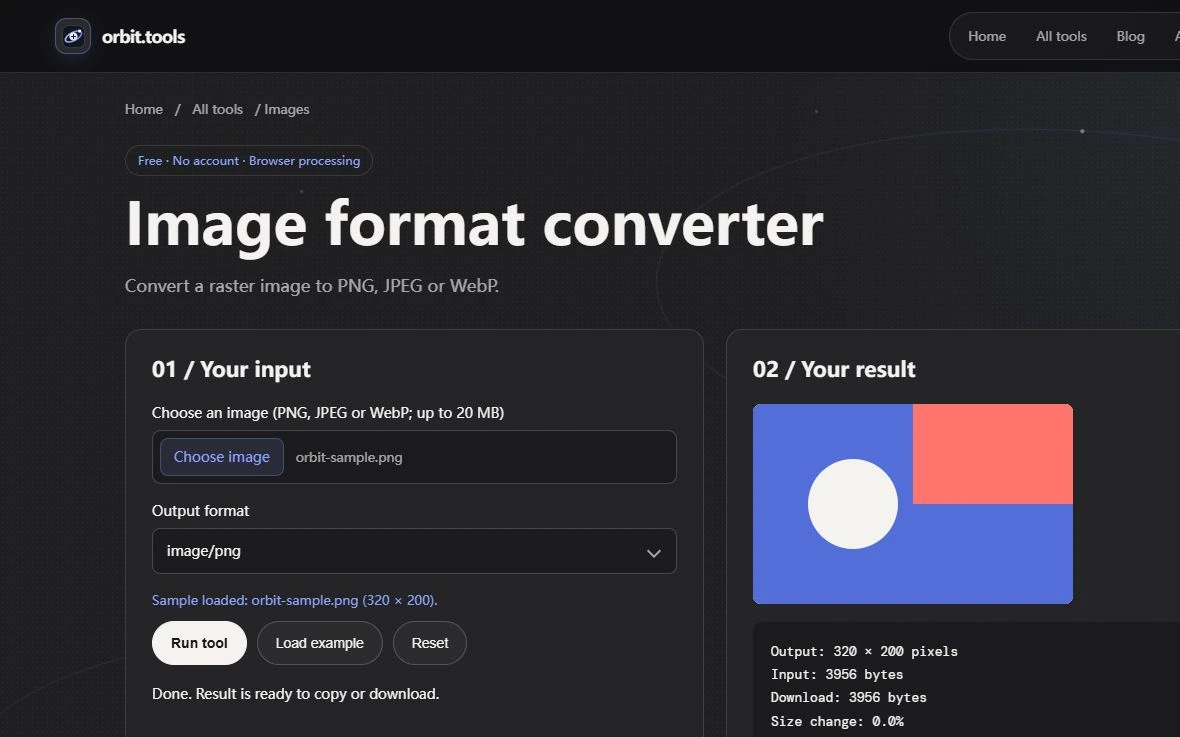
Open Image Converter with a small graphic that contains a solid colored shape, a transparent margin and a short text label. Save PNG, JPEG and WebP versions from the same source. This exercise is deliberately different from a race for the smallest file. The question is whether the thing you need to communicate survives the conversion. A missing transparent margin is a functional failure for an overlay, even when its replacement is a beautifully compressed white rectangle.
Orbit Tools accepts PNG, JPEG and WebP in its raster tools. It does not provide an AVIF encoder, vector tracing, background removal or an animation editor. A format discussed in a general web guide is not automatically an option in this converter. If the source is an editable illustration, retain that source elsewhere; a raster export cannot reconstruct its shapes and layers afterward.
A transparent edge is a useful diagnostic
Our JPEG export deliberately places the image over white before encoding. That makes the result predictable but changes the meaning of an asset meant to float over a colored surface. Put the exported file on both a dark background and a light background in your destination document. If a white rectangle appears, the conversion has flattened transparency as designed. Selecting a lower JPEG quality will not restore the missing alpha channel.
Choose PNG when the exact boundaries of a flat graphic or transparent shape matter more than a potentially smaller photograph. Consider WebP when you need a photographic asset with transparency, but inspect its fine edges rather than assuming that an extension promises a particular encoding mode. The converter exposes a format choice, not a complete set of codec controls. For small lettering, compare at the size the lettering will actually be read.
Keep dimensions and encoding as separate decisions
A 320 by 200 source remains a 320 by 200 image when only its format changes. Image Resizer is the separate step for changing that geometry. If a card needs a smaller derivative, resize from the original, then make format candidates from that derivative. Repeatedly converting one lossy export into another makes the comparison unfair because each candidate begins with different information.
The browser supplies the canvas encoder, so do not treat a byte count from one browser as a universal benchmark. Canvas export also should not be used as a metadata-preserving archival workflow. Keep the original if capture details, animation, print metadata or an editable source matter. The useful deliverable is an inspected derivative with known dimensions and an appropriate background, accompanied by the unchanged source rather than a promise that conversion preserved everything.
Start with what the image needs to do
There is no single best image format for every web asset. A photograph, a screenshot, a logo, and a small diagram have different visual structures. A photograph contains many smooth changes in tone, so a lossy format can often reduce its size without making every pixel look wrong. A screenshot contains sharp text and edges; compression marks around those edges are easy to notice. A logo may also need a transparent background. Begin by identifying the image type and the visible details that must survive.
Think about the job before opening a converter. Is the image a photo that fills a wide card? Is it a transparent product cutout? Does it include small text that must remain crisp? Will it be resized for several screens? The answer helps narrow the choices. This simple first step prevents a common mistake: choosing a format because it is fashionable, then discovering that it damages a feature the image depended on.
Use JPEG and PNG where their strengths fit
JPEG remains a familiar option for still photographs. Its lossy compression can make a camera image much smaller, but repeated saves can gradually discard detail. Avoid treating a high quality slider as a promise of exact reproduction; it is an encoder setting, and the result still needs a visual check. JPEG does not store an alpha channel, so it cannot preserve transparent areas. If a photo needs a transparent subject, use a format that supports transparency instead.
PNG is useful when a graphic needs exact pixel values or transparency, such as interface screenshots, diagrams, and some logos. Its lossless behavior is valuable when text, flat color boundaries, or fine lines matter. That does not make PNG the right choice for every large photograph: the file can be heavier than a lossy alternative. For an icon or illustration that must scale cleanly across sizes, an SVG may be a better fit because it describes shapes rather than a fixed grid of pixels.
Account for browsers and delivery
Browser support is part of the format decision. MDN's current format guide lists modern support for common image types, but a site's audience may include older software or embedded browsers. Check the browsers that matter to the project rather than assuming every visitor updates at the same time. The HTML picture element lets a page offer several source formats and fall back to an img element. That gives the browser a choice while keeping a fallback available.
For a responsive page, dimensions matter as much as the extension. A large image downloaded for a small card wastes bytes even if it uses an efficient codec. Use width and height information to reserve layout space, and consider responsive sources for substantially different display sizes. Test on a narrow screen and a larger display. A crisp image at one size may become blurry if the browser has to enlarge a much smaller source.